Lenovo M900 Tower PC (Maximized)
⚠️ Safety First
Before starting, please read our SPI Programmer Best Practices guide for essential safety information and programmer recommendations.
Board Information/caveats: Please read the board information file in the main heads repository before proceeding.
The M900 Tower is a desktop PC. Access to the board is much easier than on most laptops: remove the side cover and, if necessary, move or remove the drive cage or cables that block access to the SPI flash chip.
The machine normally has one main SPI flash chip. On M900-class boards this is usually a 16 MiB SOIC-8 chip containing the firmware descriptor, GBE, Intel ME, and BIOS region.
Important: The exact chip vendor can vary. Always read the marking on your chip and use the chip name detected by flashrom or flashprog.
Critical: Shut down the computer, disconnect the AC power cable, disconnect all peripherals, and press the power button for several seconds after unplugging. Wait a few minutes before working inside the case.
For whole procedure you will need:
- A recommended SPI programmer (see our Best Practices guide)
- Other laptop/PC with a Linux-based OS installed.
Flashing Heads
First, shut down the computer and disconnect the AC power cable. Remove all external cables from the machine. Press the power button for several seconds to discharge residual power.
Remove the side cover according to the M900 Tower Hardware Maintenance Manual
After removing the side cover, remove the CMOS battery. Next, identify the motherboard and the SPI flash chip. If cables or drive cages block access, move them carefully and document where each cable was connected.
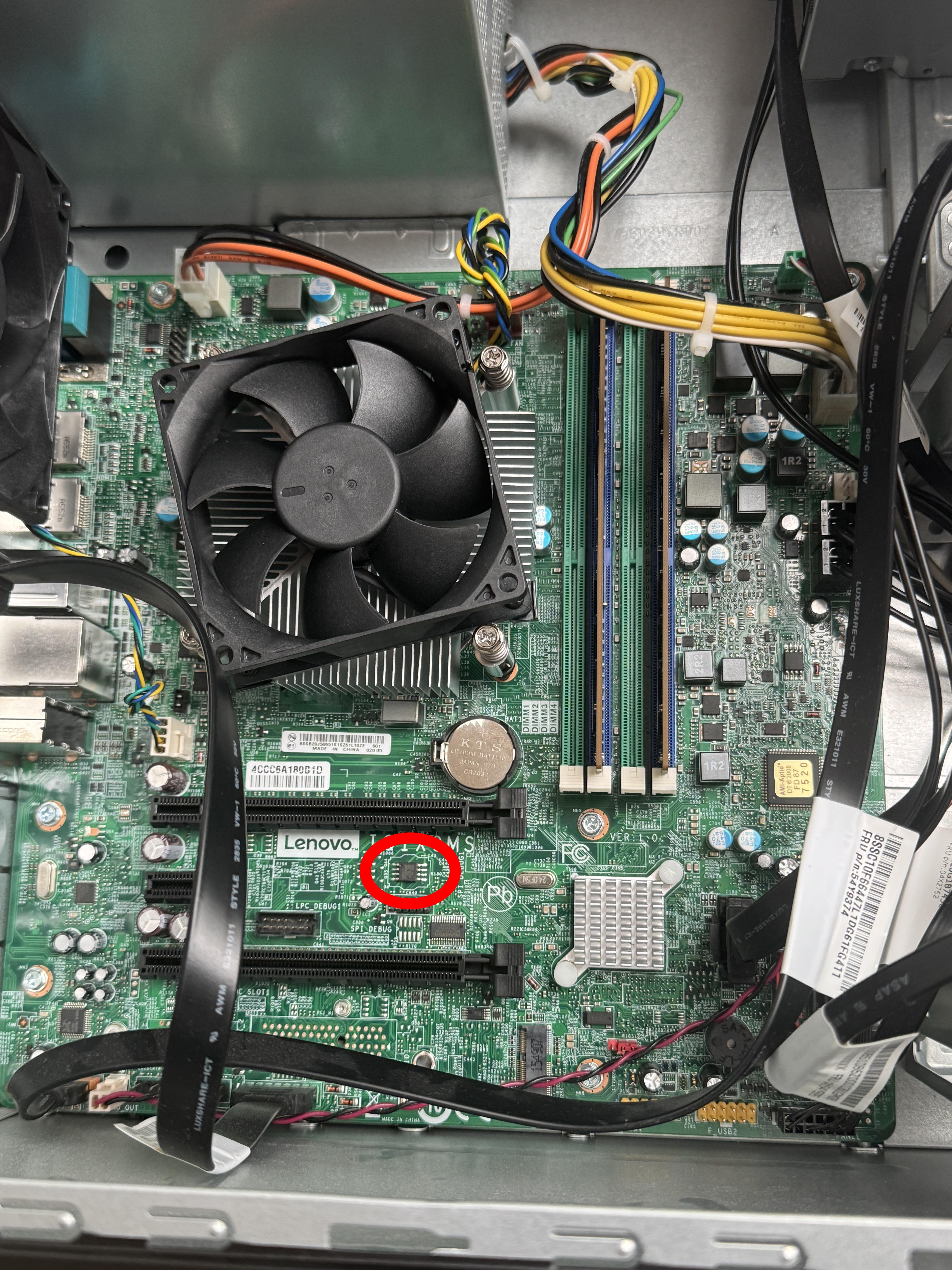
Locate the main SPI flash chip. It should be a SOIC-8 chip. Use the dot to orient the clip correctly.
You should download or build (please see general building / building x230) the board rom for this board and verify its hash value.
Try to read the name of the SPI flash chip. The dot on the chip helps to identify the correct clip orientation.
Next, connect the clip of your SPI programmer to the chip (see the SPI Programmer Best Practices guide for recommended hardware and example commands). Next, connect the programmer to the USB port of your other Linux-based computer with flashrom installed. In this setup, the red wire should be where the dot is (the dot indicates pin 1). Here, please also see the flashing guide for the T430, T480.

Use flashrom to check the chip you are connected to: Alternatively, use flashprog as described in T480s guide.
sudo flashrom --programmer
Create a backup and verify it (where the name of the flash chip is YYY):
sudo flashrom --programmer [programmer] --read ~/m900_tower_original_bios.bin --chip YYY

# Quick sanity check: inspect the start of the dump for obvious garbage
hexdump -C ~/m900_tower_original_bios.bin | head -20
sudo flashrom --programmer [programmer] --verify ~/m900_tower_original_bios.bin --chip YYY
sudo flashrom --programmer [programmer] --read ~/m900_tower_original_bios_1.bin --chip YYY
Make sure that the dump matches the chip content. If this is the case, the output of the following command will state Verifying flash... VERIFIED
sudo flashrom --programmer [programmer] --verify ~/m900_tower_original_bios.bin --chip YYY
Make sure that files do not differ.
If the dumps look consistent, proceed
Alternative comparison is bit-by-bit. If the files are the same, there should be no output of this command. Otherwise, you will see a bit-by-bit difference between the files.
diff <(hexdump -C m900_tower_original_bios.bin) <(hexdump -C m900_tower_original_bios_1.bin)
If the files differ or the chip content does not match the dump, try reconnecting your programmer to the SPI flash chip and make sure your flashrom/flashprog software is up-to-date.
If they are the same, then write m900_tower-hotp-maximized.rom to the SPI flash chip. The file name can be different based on the commit you use:
sudo flashrom --programmer [programmer] --chip YYY --write ~/heads/build/x86/T480-hotp-maximized/T480-hotp-maximized.rom
You should then follow through with configuring keys.
Done.